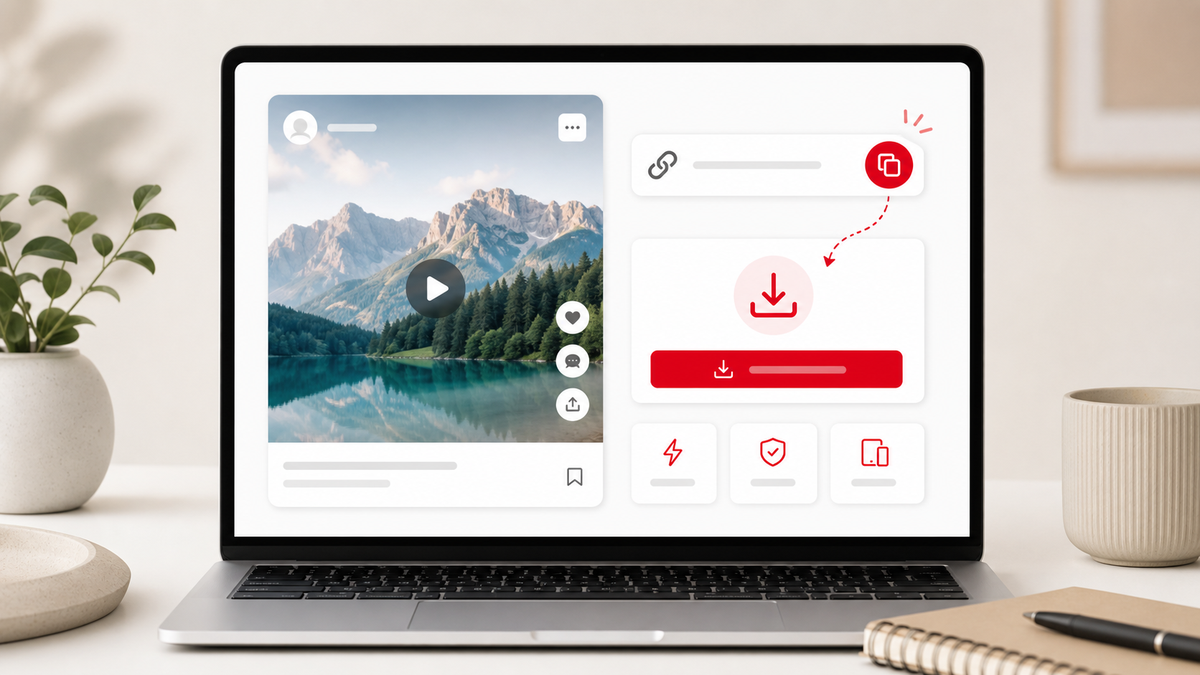
Pinterest is full of recipe clips, DIY tutorials, travel ideas, outfit videos, product demos, and creative references. When you want to keep a public video for offline viewing or personal organization, the fastest method is to use a browser-based downloader. This guide explains how to download Pinterest videos online with PintVideo and what to check when a link does not work.
What You Need Before You Start
You need a public Pinterest video Pin URL, a modern browser, and a downloader that can read supported Pinterest video data. PintVideo works with public Pin links and short pin.it links when the media is accessible. It cannot process private Pins, deleted content, boards, profiles, search pages, or links that require a Pinterest login.
Step 1: Copy the Pinterest Video Link
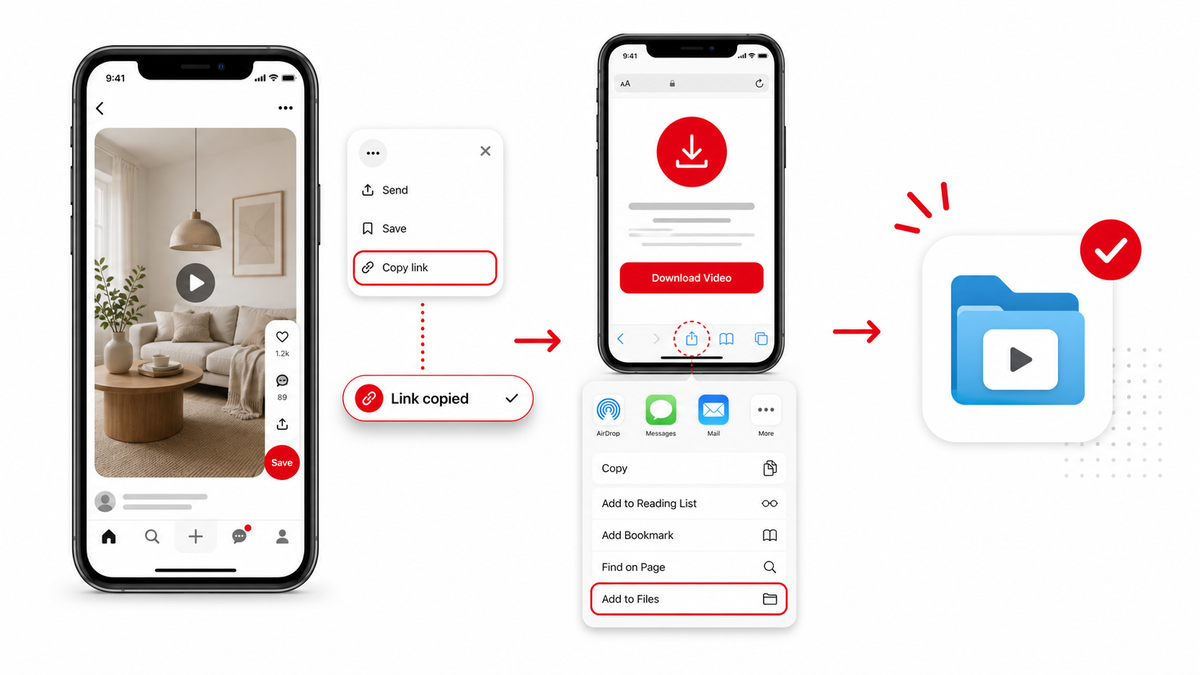
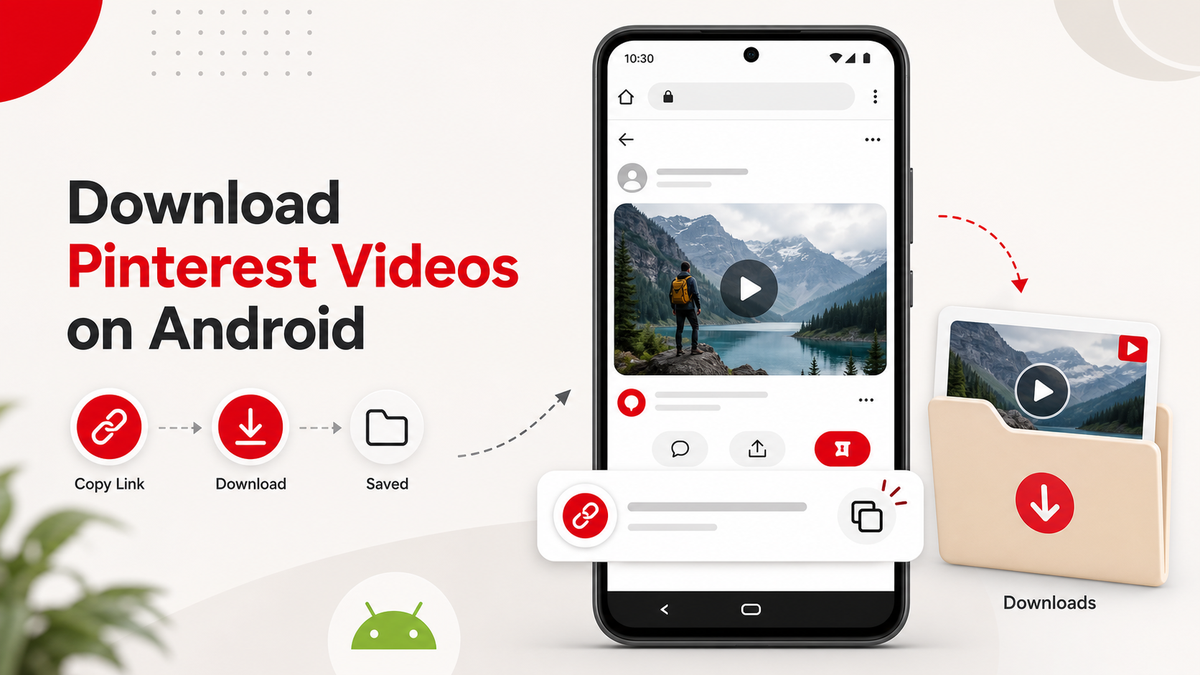
Open Pinterest and choose the video Pin you want to save. Use the share menu or browser address bar to copy the direct Pin URL. A supported link usually looks like pinterest.com/pin/123456789/ or pin.it/shortcode. If you are on a phone, copy the link from the Pinterest app and then open PintVideo in your browser.
Step 2: Paste the Link Into PintVideo
Open Pinterest Video Downloader, paste the copied URL into the input field, and start the resolver. PintVideo checks the public Pin, looks for available video files, and shows a preview when a video can be found. If the preview does not appear, the link may point to a board, profile, image-only Pin, or private content.
Step 3: Download the MP4 File
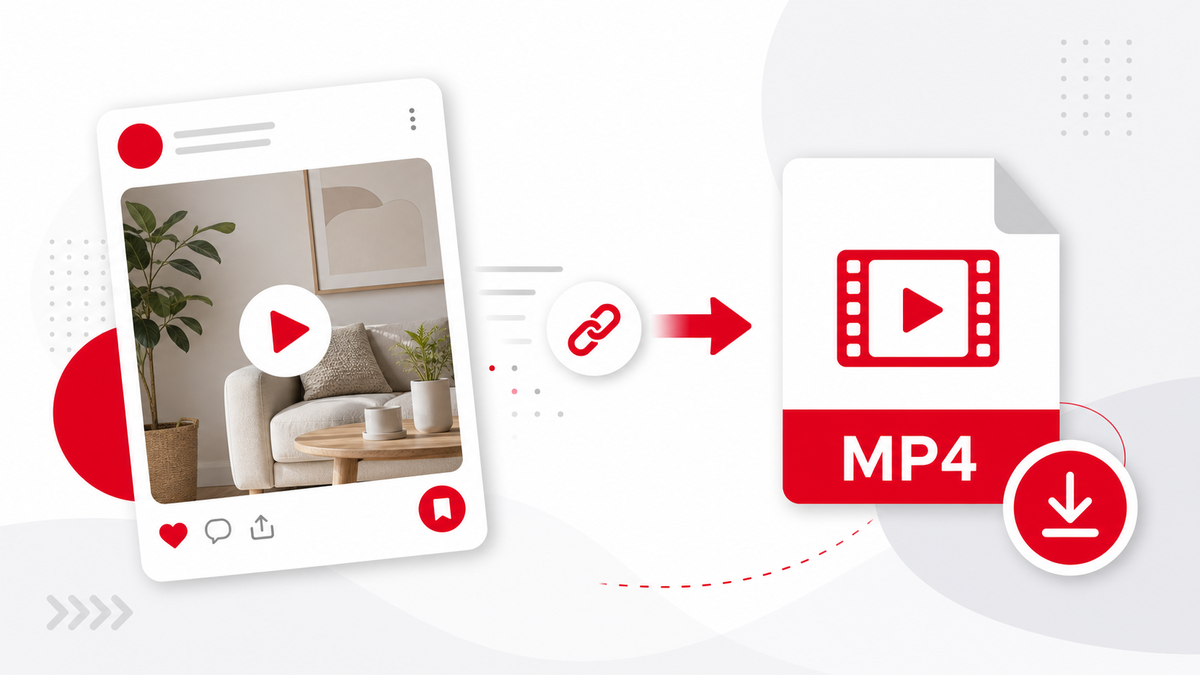
When the preview is ready, download the preferred MP4 file. MP4 is supported by iPhone, Android, Windows, macOS, tablets, browsers, and most editing apps. If you specifically need an MP4 workflow, read the Pinterest to MP4 downloader guide.
Supported Pinterest Links
PintVideo is built for public Pinterest Pin links and pin.it short links that resolve to a public video Pin. It does not download boards, profiles, search pages, or private Pins. If your link opens a list of Pins instead of a single Pin, copy the URL of the exact video Pin.
Device Guides
The same browser workflow works on desktop and mobile. For device-specific details, see how to download Pinterest videos on iPhone and Android.
Troubleshooting
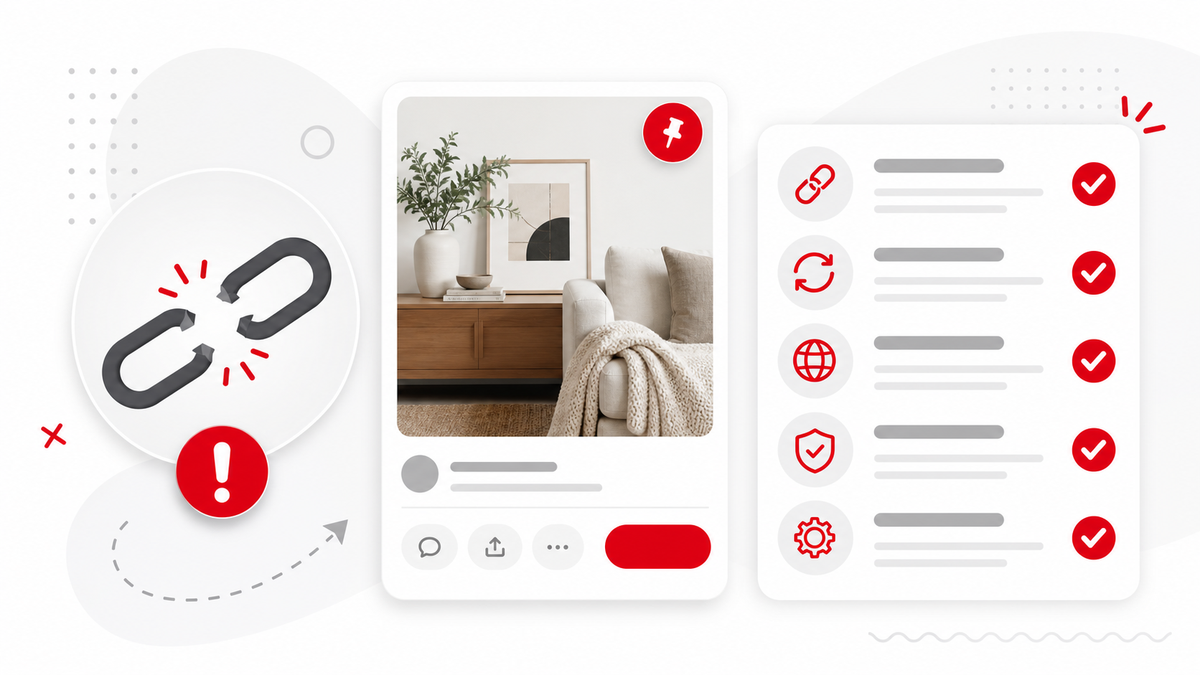
Most failed downloads come from unsupported URL types, private Pins, image-only Pins, or temporary Pinterest access limits. If a URL fails, open the Pinterest link not working checklist and verify that the Pin is public and contains video media.
FAQ
Can I download Pinterest videos without an app?
Yes. PintVideo runs in the browser, so you can paste a public Pinterest video link and download the MP4 without installing a separate app.
Can I download private Pinterest videos?
No. PintVideo supports public Pinterest links only and does not bypass privacy settings or login restrictions.
Why does my Pinterest video not download?
The link may be private, deleted, image-only, unsupported, or copied from a board or profile instead of a direct Pin.